
Hey guys! I'm having trouble logging into Apple ID on my Tahoe. I installed it on my Ryzen 5 7500F, and I installed it on a friend's 7800x3D, and they didn't have this problem. I've just tried installing it on three other people with Intel i5 12400s, and they're all getting errors. Does anyone know how to fix this?
Mac OS install on AMD Ryzen/INTEL (VMWare) Opencore - Improved Performance - Works with Tahoe / Sequoia / Sonoma / etc
- Thread starter tucano2000
- Start date
You are using an out of date browser. It may not display this or other websites correctly.
You should upgrade or use an alternative browser.
You should upgrade or use an alternative browser.
Yes I have, I even disable HyperV and all that, also disable lateral chanel mitigation in VMware, but it remains slow. I have a ryzen 5600U laptop (lenovo) and no dedicated virtual card. I disabled all animations and set a solid color BG, but even so, Tahoe performs slower than Bigsur that I manage to install before. Not that Bigsur was a lot faster, only a little better.Have you read through the 1st/2nd pages of the thread, as they contain fixes for common issues such as the macOS VM being slow.
I dedicated 16GB of ram and 8 cores, also the VM is hosted in the local M2 ssd in the laptop.
I dont know what else I can do.
It seems to be like when windows is missing the viddeo driver or something like that:
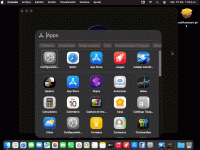
PD: Iam updating to Tahoe 26.2 currently, but the performance is the same, whenever the is some image or icon on screen.
Last edited:

The macOS VM acting like Windows does when it is missing a video driver is exactly how it is expected to work. As the VM doesn't have any graphics acceleration, as the graphics capabilities aren't passed through to the guest OS. So it will feel slow, Tahoe especially as it requires more graphics processing to manage the display's flashier properties.
If you had Sequoia running as a VM and it worked well, you would be better served reverting to the previous OS.
Latest and greatest always sounds good, but not if the host won't drive it correctly, no matter what the limitation. This is the same for a Bare Metal installation of macOS as it is for a VM. Just because you can doesn't mean you should!
If you had Sequoia running as a VM and it worked well, you would be better served reverting to the previous OS.
Latest and greatest always sounds good, but not if the host won't drive it correctly, no matter what the limitation. This is the same for a Bare Metal installation of macOS as it is for a VM. Just because you can doesn't mean you should!
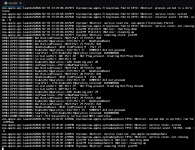
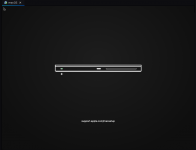

I'm following this guide to install Sequoia on VMware Workstation 25. My host is Ubuntu Desktop 25.04 running on Intel(R) Core(TM) i7-6820HQ CPU. the installation runs into the following error. Any ideas?
View attachment 18881
View attachment 18882
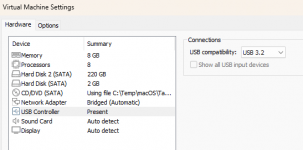
Are you using USB 3.2 in your virtual machine settings ? USB 2.0 don't work.
Links updated to Tahoe 26.3 (working on VMware as mentioned in the post)
Good news!!!
Tahoe is now working on VMWare!!!
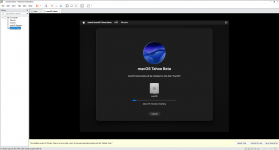
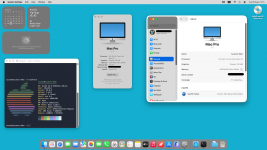
I finally got Tahoe working on VMWare, and if you want to download here are the necessary files:
Tahoe.iso (Tahoe 26.3)
The first file is a WinRAR executable to automatically extract all files. You do not need to have WinRAR installed.
Part 1 : https://drive.google.com/uc?export=download&id=1yVkvoiHDtYFkOGu5fxiZaDDOk-vlkxwM
Part 2 : https://drive.google.com/uc?export=download&id=1ZWcGXaTjEz2LwqcGdepUjrl4DO4cZo3l
Part 3 ...
Tahoe is now working on VMWare!!!
I finally got Tahoe working on VMWare, and if you want to download here are the necessary files:
Tahoe.iso (Tahoe 26.3)
The first file is a WinRAR executable to automatically extract all files. You do not need to have WinRAR installed.
Part 1 : https://drive.google.com/uc?export=download&id=1yVkvoiHDtYFkOGu5fxiZaDDOk-vlkxwM
Part 2 : https://drive.google.com/uc?export=download&id=1ZWcGXaTjEz2LwqcGdepUjrl4DO4cZo3l
Part 3 ...


Not sure what I was using before. I recreated the VM and it magically started working.Are you using USB 3.2 in your virtual machine settings ? USB 2.0 don't work.
Quick lazy overview of what made this really fast and usable for me, too lazy to type / screenshot:
Things to make it run really well:
OSX:
Things to make it run really well:
OSX:
- Black wallpaper no image
- Desktop and dock in settings (huge diff)
- Minimise using scale effect
- Minimise to icon
- Accessabilitiy
- Display
- Reduce motion
- Reduce trans
- Vmware
- Obvs install vmware tools
- Processor 8
- Mem 16
- Network must be bridged
- Display:
- Options tab:
- display, specify num of monitors:1
- max res 1600x1200
- automatically adjust
- stretch
- Advanced
- Disable memory page trimming
- Disable sisde channel mitigrations
- VMWARE wide:
- Edit->preferences
- Memory
- Fit all virtual machine mem into reserved host ram
- F safari, install firefox
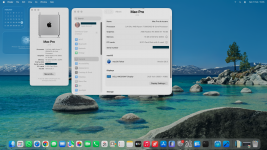
I know this section of the forum is for virtual machines, but in order to help, I had some time left over here and finally decided to put Tahoe on my PC running on a real machine with full graphics acceleration.
If anyone has the same or a similar motherboard, you can download the EFI and try to modify it to make your Hackintosh fully functional.
The complete information is in another section of the forum:
EFI AND PROCEDURES FOR INSTALLATION IN MY GITHUB REPOSITORY

 github.com
If anyone has the same or a similar motherboard, you can download the EFI and try to modify it to make your Hackintosh fully functional.
The complete information is in another section of the forum:
 Hardware
| Component | Model |
|---|---|
| CPU | Ryzen 5800X3D or AMD 8 cores cpu |
| Motherboard | ASUS TUF GAMING B550M-PLUS |
| GPU | RX 6900 XT |
| Audio | Realtek ALC1200 |
| Ethernet | Realtek 2.5G |
| Storage | NVMe / SATA SSD |
EFI AND PROCEDURES FOR INSTALLATION IN MY GITHUB REPOSITORY
GitHub - aidoluiz/ASUS-TUF-GAMING-B550M-PLUS-OPENCORE-EFI
Contribute to aidoluiz/ASUS-TUF-GAMING-B550M-PLUS-OPENCORE-EFI development by creating an account on GitHub.
github.com
- tucano2000
- Replies: 5
- Forum: Success Stories
Attachments
Thanks great human i finally have a new mac vm but i am interested in old versions of mac os can this run all mac os version
Probably only back as far as High Sierra. OpenCore only works with AMD systems as far back as High Sierra. There are no AMD Kernel patches for earlier versions of macOS.
You would need an Intel system to run anything older.
Which Intel system to use would depend on the version(s) of macOS/OS X you wanted to run. As different versions of OS X work with specific Intel Series CPU, IGPU & motherboard Chipset.
For example:
You would need an Intel system to run anything older.
Which Intel system to use would depend on the version(s) of macOS/OS X you wanted to run. As different versions of OS X work with specific Intel Series CPU, IGPU & motherboard Chipset.
For example:
- A Haswell system with an 8 or 9-series chipset can run Mountain Lion and newer, but not Lion or Snow Leopard, as these two OS's lack the drivers required for a Haswell system to work.
- For Snow Leopard you would probably want an older 1st Gen Intel Core CPU and Intel 5-series chipset (Arrandale i7-870 or similar).
- For Lion you need a Sandy Bridge or Ivy Bridge CPU with Intel 6 or 7-series chipset.
will it work with older versions of mac os and on mac os sequoia the wallpaper isnt fixing and vmware tools arent working
Only as far back as High Sierra. Read my last post for a full explanation.will it work with older versions of mac os
See post #2 for fix for white desktop.
When I first got macOS, I had this problem with a white background (wallpaper) in the system background. But you have to go into the macOS settings and click on Wallpaper and then deactivate the Show as screen saver option. Then choose a wallpaper you like.


i tried it temporary fix see my other post for it and ventura install dont workOnly as far back as High Sierra. Read my last post for a full explanation.
See post #2 for fix for white desktop.
When I first got macOS, I had this problem with a white background (wallpaper) in the system background. But you have to go into the macOS settings and click on Wallpaper and then deactivate the Show as screen saver option. Then choose a wallpaper you like.
Check the first few pages of the VM guide, there is a section/post related to creating and using your own ISO.
Thanks man youve been a really good guy but how do i get my internet working mac os sequoia 15.something and ive been running on amd ryzen 5 2500u and the best fix to the wallpaper was to just use my own wallpaper because i dont have any 3d acceleration for dynamic wallpaper
Again, there is a post for this specific issue, setting the Ethernet connection as 'Bridged' is the option that works for 99% of people.
The basic network setup is shown below.
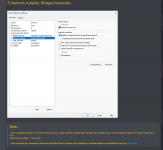 Screenshot from first post, showing standard VM Network setup.
There is an alternative setup, using NAT, which can be found in this post.
The basic network setup is shown below.
Screenshot from first post, showing standard VM Network setup.There is an alternative setup, using NAT, which can be found in this post.
There are some reports that macOS doesn't work internet in Bridge mode and depends on NAT.
It seems that depending on the configuration of the VMWare machine, it can't detect the correct network adapter in automatic mode.
To fix this, do the following:
In VMWare click on Edit and then choose Virtual Network Editor

In the window that opens, select VMNet1 and click Change Settigns.

Now select VMNet0 and then choose the local network adapter used on your host computer in the “Bridged to:' option. The name of the adapter will depend on which type exists on your...
It seems that depending on the configuration of the VMWare machine, it can't detect the correct network adapter in automatic mode.
To fix this, do the following:
In VMWare click on Edit and then choose Virtual Network Editor
In the window that opens, select VMNet1 and click Change Settigns.
Now select VMNet0 and then choose the local network adapter used on your host computer in the “Bridged to:' option. The name of the adapter will depend on which type exists on your...