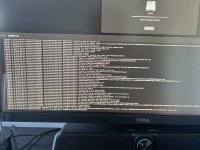
This is my first time creating a EFI for hackintosh but Macos gives me a blocked sign, I tried doing what dortainia said in the trouble shooting guide but it didn’t work. I have USBToolBox Mapping but still not working does anyone know how to fix this?
Probably, as it may not contain all the kexts you need in the Kexts folder; the SSDTs in the ACPI folder won’t be custom for your motherboard’s DSDT.aml; I can’t recall if there is a custom USB kext (probably not one compatible with Tahoe).
If it boots the system in to Sequoia it can be used from the EFI partition on your macOS drive, so you don’t need to use the USB installation drive.
Probably, as it may not contain all the kexts you need in the Kexts folder; the SSDTs in the ACPI folder won’t be custom for your motherboard’s DSDT.aml; I can’t recall if there is a custom USB kext (probably not one compatible with Tahoe).
If it boots the system in to Sequoia it can be used from the EFI partition on your macOS drive, so you don’t need to use the USB installation drive.
It boots into Sequoia’s installer but it freezes at about 19 minutes left, I tried making my custom SSDT’s, Remaking the USBMap.kext but still nothing.
Could be the macOS installer is damaged, it happens often enough to not be seen as unusual.
Make sure you save a copy of your booting OC EFI folder.
Erase the macOS installation USB.
Delete the macOS app from your Mac or other Hack.
Download a new copy of the macOS dmg/app.
Using the same app is likely to just cause the same failure.
Restore the macOS Installer to your USB pen drive.
Add your booting EFI folder to the EFI partition on your USB pen drive.
Then run the installation again, use Disk Utility to erase the previous partial macOS installation, see if it gets past the 19min remaining point with the new USB installer.
Could be the macOS installer is damaged, it happens often enough to not be seen as unusual.
Make sure you save a copy of your booting OC EFI folder.
Erase the macOS installation USB.
Delete the macOS app from your Mac or other Hack.
Download a new copy of the macOS dmg/app.
Using the same app is likely to just cause the same failure.
Restore the macOS Installer to your USB pen drive.
Add your booting EFI folder to the EFI partition on your USB pen drive.
Then run the installation again, use Disk Utility to erase the previous partial macOS installation, see if it gets past the 19min remaining point with the new USB installer.
Well I doubt that the issue is in your OpenCore setup. If an issue arises that late in the process it will normally be something related to the macOS installation app/dmg.
Well I doubt that the issue is in your OpenCore setup. If an issue arises that late in the process it will normally be something related to the macOS installation app/dmg.
Also your right os installers do have wrong estimated times and may take longer than expected but the thing that’s making me feel off is that my mouse is freezing and keyboard.
Have you tried disabling WhateverGreen.kext (temporarily) during the installation?
Which version of WhateverGreen are you using?
Have you disabled the AMD IGPU in the bios?
Have you tried using your keyboard & mouse in a different USB port?
The issue with 12 mins remaining is a lot more common, than getting stuck with 19 mins remaining. But still usually relates to an issue with the installation drive, rather than the OC setup.
Have you tried disabling WhateverGreen.kext (temporarily) during the installation?
Which version of WhateverGreen are you using?
Have you disabled the AMD IGPU in the bios?
Have you tried using your keyboard & mouse in a different USB port?
The issue with 12 mins remaining is a lot more common, than getting stuck with 19 mins remaining. But still usually relates to an issue with the installation drive, rather than the OC setup.
I’ll try disabling whatevergreen and switching my keyboard and mouse to a different port in the same run, I’m using 1.7.0 and I always disable the iGPU in bios.
Have you tried disabling WhateverGreen.kext (temporarily) during the installation?
Which version of WhateverGreen are you using?
Have you disabled the AMD IGPU in the bios?
Have you tried using your keyboard & mouse in a different USB port?
The issue with 12 mins remaining is a lot more common, than getting stuck with 19 mins remaining. But still usually relates to an issue with the installation drive, rather than the OC setup.
That shows issues with your disks, pre-boot not mounted and other APFS issues. Also that you didn't need to wait for the issue to resolve itself. The entries visible in the log span a timeframe of less than 2 seconds.
Do you have apfs_aligned.efi in your /EFI/OC/Drivers folder, with a corresponding entry in your config.plist? If not, try adding it to your setup. Copy attached.
How many disks/drives do you have installed in your system? Best option is to only have the USB installer and the proposed macOS drive connected.
All other drives should be temporarily disconnected/removed until macOS has been installed.
You may need to add NVMeFix.kext in your /EFI/OC/Kexts folder with a corresponding entry in your config.plist, if you are using an NVME drive that isn't fully compatible with macOS, as it provides fixes for power management and other issues. Copy of the latest kext folder is ttached.
That shows issues with your disks, pre-boot not mounted and other APFS issues. Also that you didn't need to wait for the issue to resolve itself. The entries visible in the log span a timeframe of less than 2 seconds.
Do you have apfs_aligned.efi in your /EFI/OC/Drivers folder, with a corresponding entry in your config.plist? If not, try adding it to your setup. Copy attached.
How many disks/drives do you have installed in your system? Best option is to only have the USB installer and the proposed macOS drive connected.
All other drives should be temporarily disconnected/removed until macOS has been installed.
You may need to add NVMeFix.kext in your /EFI/OC/Kexts folder with a corresponding entry in your config.plist, if you are using an NVME drive that isn't fully compatible with macOS, as it provides fixes for power management and other issues. Copy of the latest kext folder is ttached.
Its basically the same EFI folder you gave me but I added custom USBX and EC ssdts for my mb and I remade the USBMap.kext to add one more port and added apfs_aligned.efi.
This site uses cookies to help personalise content, tailor your experience and to keep you logged in if you register.
By continuing to use this site, you are consenting to our use of cookies.
Sure, ad-blocking software does a great job at blocking ads, but it also blocks some useful and important features of our website. For the best possible site experience please take a moment to disable your AdBlocker.