
Booting into the prohibited symbol
- Thread starter momchilh
- Start date
-
Hello Guest. Before you post check the Troubleshooting guide here, Dortania Troubleshooting
You are using an out of date browser. It may not display this or other websites correctly.
You should upgrade or use an alternative browser.
You should upgrade or use an alternative browser.

Hey, new things happen again. The bootloader is fast again, i even have OpenCore set as my first boot option when i checked in my BIOS. Thanks for whatever you did! This time i was greeted with "The operation could not be completed. (com.apple.diskmanagement.disenter error -119930877.)", even quicker, i mean after the first restart. Right now im reading that this is a problem with macOS recognising your drive. Ill restart the whole installation. By the way, earlier you said i havent mapped my USBs correctly, why is that?
Edit: After a few tries i got to the same situation - apple screen, progress moving from 29 to 27 minutes and then the installer popping up with "An error occurred while preparing the software update.".
Edit again: Ive booted quite a few times and after the installer restarts around 5 times every time it freezes in random places. In the beginning it was freezing at the apple logo, now i cant even get past the verbose logs. For example the system straight up freezes in the middle of printing a path or i get no display output.
Edit: After a few tries i got to the same situation - apple screen, progress moving from 29 to 27 minutes and then the installer popping up with "An error occurred while preparing the software update.".
Edit again: Ive booted quite a few times and after the installer restarts around 5 times every time it freezes in random places. In the beginning it was freezing at the apple logo, now i cant even get past the verbose logs. For example the system straight up freezes in the middle of printing a path or i get no display output.
Last edited:

Which drive are you aiming to use as your macOS drive? Not the old Seagate 500gb drive you took from the MacMini I hope.
Did you recreate your macOS installation drive?
Might be sensible eremove any drive you are not planning to use for macOS, I.e. Windows, Linux or Data Storage drives. So you only have the macOS installation drive and the drive you plan to install macOS Tahoe on.
Did you recreate your macOS installation drive?
Might be sensible eremove any drive you are not planning to use for macOS, I.e. Windows, Linux or Data Storage drives. So you only have the macOS installation drive and the drive you plan to install macOS Tahoe on.
I want to use the 1TB Silicon Power SSD. An HDD wont do much today, i just have it for extra storage. Last time i recreated the whole installer drive was when i started using one for 26.3, which is precisely when i sent my last bootable EFI configuration. Is it reallynecessary to remove the other drives? The HDD is easy, the problem is the other drive is an NVMe, so that means i cannot use my pc at all and ill have to tear it apart just to take the drive out
A Silicon Power SSD isn’t the best option for the macOS drive. They are cheap for a reason. Personally I would never recommend Silicon Power drives to anyone.
I have found these Silicon Power drives to be flakey and prone to issues when used as anything other than a Windows drive. Tried using a 1 TB SSD in a PS4 and another as the macOS drive in a Mini PC Hack. Neither lasted long before issues arose. The drive in the PS4 died completely. The macOS drive was swapped to another PC and used for a Windows 11 install, before more serious issues occurred or it died.
There are better options for a new macOS drive, probably cost more than the Silicon Power SSD, but isn’t that the case for most compatible macOS components. Some Samsung SSD’s are fine as macOS drives, but by far and away the best choice is a Western Digital or a SanDisk drive (SSD or NVME), as the controller used in those drives are fully compatible with macOS. Can’t say the same for the latest Gen 5 NVME drives, as they use an incompatible controller.
Using any drive that incorporates a Phison controller as an macOS drives is asking for trouble.
I have found these Silicon Power drives to be flakey and prone to issues when used as anything other than a Windows drive. Tried using a 1 TB SSD in a PS4 and another as the macOS drive in a Mini PC Hack. Neither lasted long before issues arose. The drive in the PS4 died completely. The macOS drive was swapped to another PC and used for a Windows 11 install, before more serious issues occurred or it died.
There are better options for a new macOS drive, probably cost more than the Silicon Power SSD, but isn’t that the case for most compatible macOS components. Some Samsung SSD’s are fine as macOS drives, but by far and away the best choice is a Western Digital or a SanDisk drive (SSD or NVME), as the controller used in those drives are fully compatible with macOS. Can’t say the same for the latest Gen 5 NVME drives, as they use an incompatible controller.
Using any drive that incorporates a Phison controller as an macOS drives is asking for trouble.
The issues you are facing are more likely to be hardware related, such as an incompatibility with a drive, than an issue with your EFI setup.
The other main cause of issues like you are seeing are related to the actual macOS installation drive, where the installer is borked and fails to complete the installation process.
Both of the above causes are common.
The other main cause of issues like you are seeing are related to the actual macOS installation drive, where the installer is borked and fails to complete the installation process.
Both of the above causes are common.
Well, i proved you right, this was the result after trying the install on the HDD. LAN and audio not working, as expected. I wont be keeping the installation on the HDD, its really slow, but for now heres where ill perform the finishing touches. BTW, what
Attachments
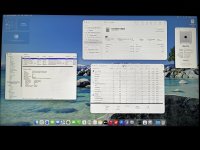
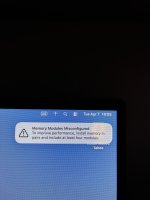
Congratulations!
The Memory Modules Misconfigured message, plus the PCI slots showing on the About this Mac tab are both related to use of the MacPro7,1 SMBIOS. The simplest way to fix this is to add RestrictEvents.kext to your /EFI/OC/Kexts folder, with a corresponding entry in the config.plist.

 github.com
Then just add this boot argument to your config:
revpatch=auto,sbvmm
This should fix the Memory, PCI Slot and add the ability to download macOS updates through the Software Updates feature in Tahoe.
If you read the information on the RestrictEvents page you can see it will also allow you to set your CPU name, so it shows correctly in the About This Mac tab and System Information. I tend to use the NVRAM Add & Delete options, just because I think it is a cleaner setup, also I am less likely to forget them, whereas the boot argument is simple to overlook.
The Memory Modules Misconfigured message, plus the PCI slots showing on the About this Mac tab are both related to use of the MacPro7,1 SMBIOS. The simplest way to fix this is to add RestrictEvents.kext to your /EFI/OC/Kexts folder, with a corresponding entry in the config.plist.
GitHub - acidanthera/RestrictEvents
Contribute to acidanthera/RestrictEvents development by creating an account on GitHub.
github.com
Then just add this boot argument to your config:
revpatch=auto,sbvmm
This should fix the Memory, PCI Slot and add the ability to download macOS updates through the Software Updates feature in Tahoe.
If you read the information on the RestrictEvents page you can see it will also allow you to set your CPU name, so it shows correctly in the About This Mac tab and System Information. I tend to use the NVRAM Add & Delete options, just because I think it is a cleaner setup, also I am less likely to forget them, whereas the boot argument is simple to overlook.
Well i restarted the Hack and something familiar happened. When im in the Login window before the system actually starts up, a password is needed for the hack to be unlocked. When i was installing with oclp on a mbp from mid 2010 the same thing was happening - when i type the correct password, the os rejects it. Even the "recovery key" doesnt work. Only solution i found was to reinstall everything. Not sure if i want to go through the whole installation process again on an HDD though.
Edit: i restarted so i can test out whether a different audio codec will work or not.
Edit: i restarted so i can test out whether a different audio codec will work or not.
Support for Realtek ALC codecs was lost when Apple removed AppleHDA.kext from Tahoe, which AppleALC.kext relies on for the built-in audio in our PC's to work.
So there is no point messing with audio codecs in Tahoe, as AppleALC.kext doesn't work without a post installation fix being applied and AppleHDA.kext being added back to the system.
See this page for details.
 github.com
So there is no point messing with audio codecs in Tahoe, as AppleALC.kext doesn't work without a post installation fix being applied and AppleHDA.kext being added back to the system.
See this page for details.
GitHub - perez987/AppleHDA-back-on-macOS-26-Tahoe: Reinstall AppleHDA.kext, removed since beta 2, in macOS Tahoe to restore sound from the built-in audio chip.
Reinstall AppleHDA.kext, removed since beta 2, in macOS Tahoe to restore sound from the built-in audio chip. - perez987/AppleHDA-back-on-macOS-26-Tahoe
github.com
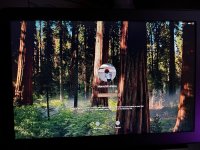
Sorry to bother but do you know a fix for the os not accepting your password? I want to know if i have to reinstall fully. And is there a possible fix, because i assume if i reinstall the os the same exact thing will happen after the first shut down. The pictures from my macbook running unsupported os with oclp, not the hack.
Edit: Password works perfectly fine in the recovery environment. After a "resetpassword" same thing happens.
Edit: Password works perfectly fine in the recovery environment. After a "resetpassword" same thing happens.
Attachments
Last edited:
This is caused by the installer enabling FileVault as part of the macOS installation wizard. This happens in the latest Sequoia installer and all Tahoe installers.
The installer will enable FileVault if you use the iCloud sign-in option that is part of the installation wizard, i.e. will automatically enable FileVault with no input from the user.
The way to fix this is to not sign-in to iCloud, do it after you have reached the macOS desktop. Then the wizard will show an extra page in the installation process, where you can manually decline the FileVault encryption of your macOS drive.
There is now a Kernel Patch by Max.1974, which can be added to the config.plist, that will prevent the installer from enabling FileVault.
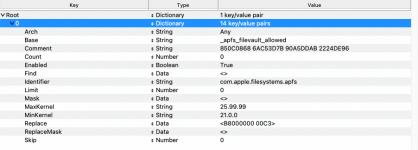 Kernel > Patch prevents FileVault encryption of the macOS drive.
Easiest way to fix this is to reinstall macOS Sequoia or Tahoe, but have the kernel patch above in your config.plist alongside the AMD Kernel Patches.
The installer will enable FileVault if you use the iCloud sign-in option that is part of the installation wizard, i.e. will automatically enable FileVault with no input from the user.
The way to fix this is to not sign-in to iCloud, do it after you have reached the macOS desktop. Then the wizard will show an extra page in the installation process, where you can manually decline the FileVault encryption of your macOS drive.
There is now a Kernel Patch by Max.1974, which can be added to the config.plist, that will prevent the installer from enabling FileVault.
Kernel > Patch prevents FileVault encryption of the macOS drive.Easiest way to fix this is to reinstall macOS Sequoia or Tahoe, but have the kernel patch above in your config.plist alongside the AMD Kernel Patches.
Attachments
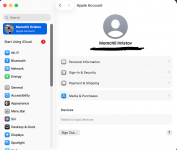
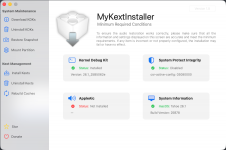
Hey Ed, just wanted to update you on the situation. The reinstall went smoothly and i had no problems with FileVault this time. Now im dealing with the broken iServices, as Apple Music let me log in with my apple id, but the others, like Calendar and Messages, just send me to a login window in System Preferences. About the Preferences, sometimes after login i am partially logged in - on other apple products i can see the "Mac Pro" being listed as my device. Thing is when i try logging inside the Preferences app, i get an error saying it couldnt comunicate with the server or something like that. Also the audio and ethernet are still not working. Ill continue trying other kernel extensions for the ethernet, byt for teh audio i followed the link to MyKextInstaller, the app may be working correctly but thing is in the place where it says AppleAlc.kext, the status is "Not Installed". Even when i installed AppleHDA.kext through the app and rebooted the machine, still nothing happened (AppleALC.kext is enabled in the config.plist). Not sure if the kext is installed or not, or its just a wrong audio codec im using (i tried 11 at first boot then changed to 7).
Edit: Software updates are broken too.
Edit: Software updates are broken too.
Attachments

Last edited:
I'm sure @Edhawk will chime in at some point, you should be able to get audio working if you followed the instructions properly. You could also purchase a USB Audio adapter if you can't figure it out.Hey Ed, just wanted to update you on the situation. The reinstall went smoothly and i had no problems with FileVault this time. Now im dealing with the broken iServices, as Apple Music let me log in with my apple id, but the others, like Calendar and Messages, just send me to a login window in System Preferences. About the Preferences, sometimes after login i am partially logged in - on other apple products i can see the "Mac Pro" being listed as my device. Thing is when i try logging inside the Preferences app, i get an error saying it couldnt comunicate with the server or something like that. Also the audio and ethernet are still not working. Ill continue trying other kernel extensions for the ethernet, byt for teh audio i followed the link to MyKextInstaller, the app may be working correctly but thing is in the place where it says AppleAlc.kext, the status is "Not Installed". Even when i installed AppleHDA.kext through the app and rebooted the machine, still nothing happened (AppleALC.kext is enabled in the config.plist). Not sure if the kext is installed or not, or its just a wrong audio codec im using (i tried 11 at first boot then changed to 7).
Edit: Software updates are broken too.
Meanwhile I don't see you have internet enabled, maybe I missed that, but without it you are a bit up a tree for everything else. Again a USB Ethernet adapter is another alternative and easy to find in different speeds.
Last edited:
The audio codec won’t be the issue with the MyKextInstaller app. You need to check that you have the latest version of AppleALC.kext in your /EFI/OC/Kexts folder and the kext is enabled in your config.plist.
The Ethernet issue has the same resolution offered as before, install a compatible PCIe Ethernet card in a spare PCIe slot, or use a USB to Ethernet adapter. As your builtin Ethernet device doesn’t appear to work with any of the kexts we would expect it would.
Software Updates require you to install the latest version of RestrictEvents.kext to your /EFI/OC/Kexts folder and set the appropriate boot argument (revpatch=sbvmm) or the alternate NVRAM entries in your config.plist, as explained in post #29 above.
The Apple sign-in issue could be caused by the lack of a valid Network Interface (Ethernet), which macOS would expect for a MacPro system.
The Ethernet issue has the same resolution offered as before, install a compatible PCIe Ethernet card in a spare PCIe slot, or use a USB to Ethernet adapter. As your builtin Ethernet device doesn’t appear to work with any of the kexts we would expect it would.
Software Updates require you to install the latest version of RestrictEvents.kext to your /EFI/OC/Kexts folder and set the appropriate boot argument (revpatch=sbvmm) or the alternate NVRAM entries in your config.plist, as explained in post #29 above.
The Apple sign-in issue could be caused by the lack of a valid Network Interface (Ethernet), which macOS would expect for a MacPro system.
Hey again! Software updating works well, also the audio is fixed for now. Only issue im having is when i plug in a usb-a in one of the front ports of my pc case the audio only plays left or right. Same things happening when i plug something in the front usb-c port, except the audio just cuts out and if i want to regain control using wired headphones with a singular 3.5mm jack, i have to restart the OS. Thats probably caused by incorrect USB mapping, which is the next step im stuck on. By following the Dortania guide, I used the renaming ACPI patches, needed for my XHC1 controller to be renamed to SHCI, not because the MacPro7,1 SMBIOS was listed there, but because the IOService check you do in Terminal (ioreg -l -p IOService -w0 | grep -i XHC1) gave me a strange output, i guess the same table i could see in the IORegistryExplorer app. The check only proved i needed renames for the XHC1 controller, not for the EHC1 and EHC2. Heres where another question comes to mind, by looking at the found controllers in my system, theres an XHC0 too, which again gives a strange output when checked for in Terminal. Not sure whether i have to rename anything or not, since there are no patches for this exact controller. Moving forward, the guide says i have to plug in a usb-a 2.0 or 3.0 in order to identify the controller and the port inside of IORegistryExplorer. Thing is nothing pops up, the list stays the same. Not sure if it does work the same, but the USBToolBox tool worked fine and i could identify which physical port is connected to a controller (a UTBMap.kext was generated too). Again, this method is probably something i shouldnt be doing but this is the best i could do for now. Since ill buy a t919 card ill wait a bit with the usb mapping since ill need to know the exact internal usb it connects to.
