Memory Installation Fix for MacPro7,1 SMBIOS

iGPU

Donator
Donator
AMD OS X Member
May 5, 2020
15
24
3
I've finally figured out how to correctly use the Memory section in OC. I decided to work on this since I've now changed to using MacPro7,1 instead of iMacPro1,1 due to the former apparently being a better match for going forward with AMD 6x00XT GPUs.

If you follow this guide carefully, you will not need the kext "RestrictEvents.kext" file, and you will no longer see a memory error. I've only tested in Big Sur, but it should work under Catalina as well.

Here's the memory guide:

OC's "BANK" numbers were re-arranged to better match the memory upgrade instructions per Apples's docs. The Bank numbers in their order of appearance are slots: 7, 8, 9, 10, 11, 12, 6, 5, 4, 3, 2, and 1. These correspond to the slot numbers on the memory board. In Apple's docs, the slots are arranged into DIMM Channels, A-F. DIMM Channel A are Banks/slots 7, 8; B are 9,10; C are 11, 12; D are 5, 6; E are 3, 4; and F are 1, 2 (as shown in spoiler below).

Screen Shot 2021-05-01 at 12.41.47 PM.png
Screen Shot 2021-05-01 at 12.41.55 PM.png
Screen Shot 2021-05-01 at 12.42.08 PM.png

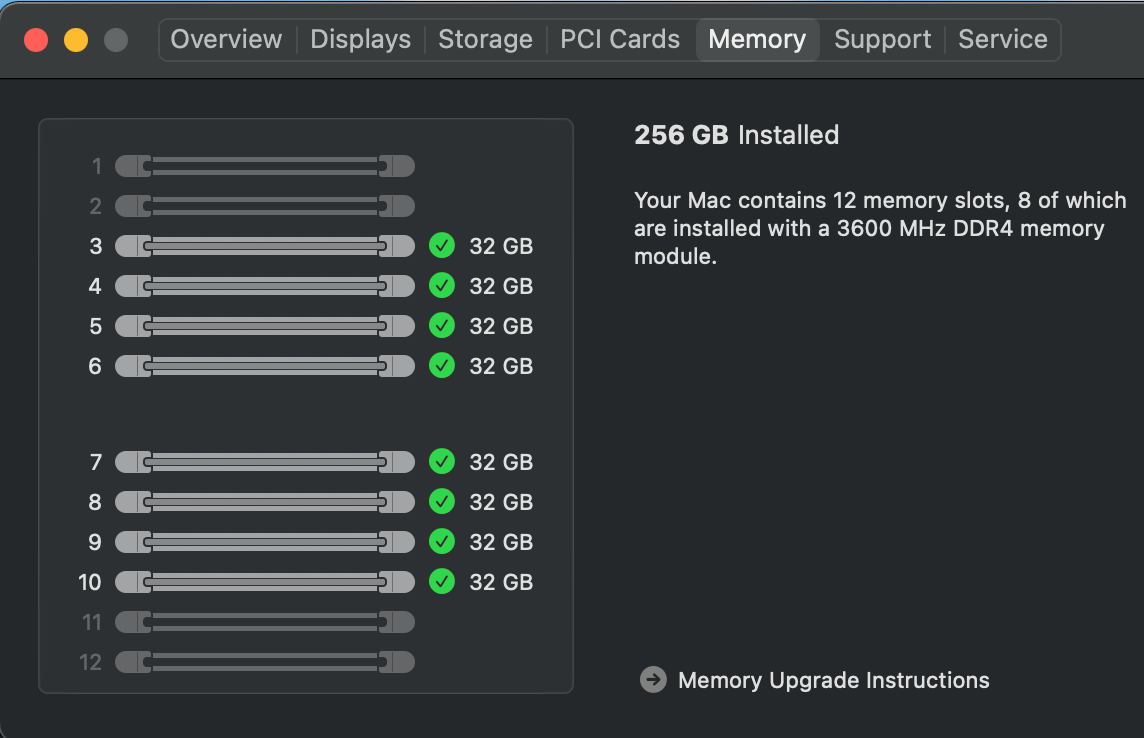
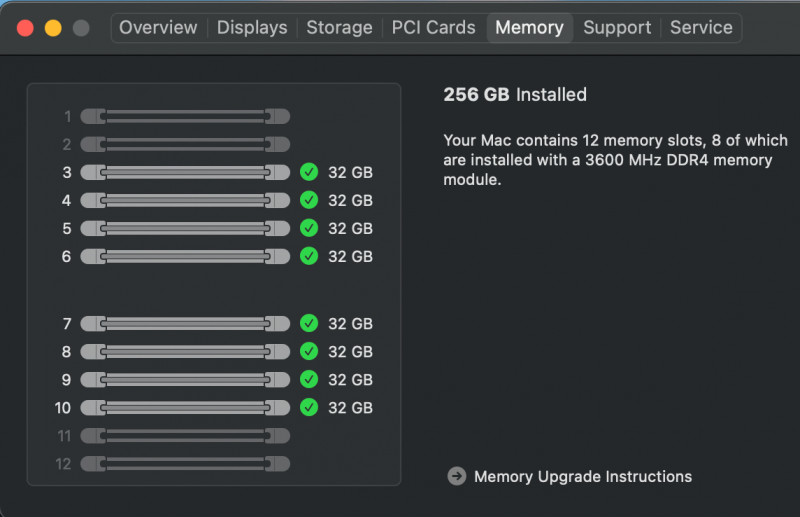
If properly arranged, below is what is seen with 8 DIMMs installed on my TRX40 mobo. While most mobos only allow 8 memory slots (and some only allow 4), an actual MacPro7,1 has 12 slots, so our mobos will always have at least 4 slots empty. Now, should you only be using 4 memory sticks, then set to empty the following slots: 1, 2, 3, 5, 8, 10, 11, 12. In other words, if you are using 4 DIMMs, only slots 4, 6, 7 and 9 will be populated (thanks djlild7hina!).

Note: this does not mean you physically move your DIMMs about on your mobo; this whole process is to map your DIMMs into software locations where the macOS is expecting them to be positioned. Keep your DIMMs physically where the mobo manual recommends.


The code within OC is shown in excerpt below (I use PlistEditPro; the full code is downloadable as an attachment). Add it enbloc as the "Memory" section within the PlatformInfo section (also make sure to enable "CustomMemory"). The SNs are arbitrary (add your actual ones if you're more OCD than me). The part numbers are mine as used, made by Cosair; change these values as you wish. The AssetTag is also arbitrary but only entered if that memory slot is populated. Finally, change the Size and Speed values to better match your DIMM.


If SystemInformation is run, the following is seen:
Screen Shot 2021-05-01 at 12.18.02 PM.png

In the attachment, I included the 8 DIMMs as well as one for 4 DIMMs (4 DIMM verified and fixed by djlild7hina on another forum). Inactivate either one with "#" symbol or activate by removing "#" and editing the label heading to "Memory":
Screen Shot 2021-05-01 at 12.23.18 PM.png

Attached file updated to also correct 2 and 4 DIMM settings.
 

Attachments

Last edited:
It’s a bit annoying that if you are only using two sticks of ram you still have to map it for four. I’m tempted to try the new version of restrictevents to see if it does the job with the memory properly now.
 
@iGPU Thank you very much, that's too good.Merci beaucoup🙏
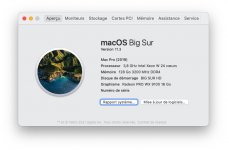
I started from your memory list which I updated with my information from my own memories.
arrakis MacPro 2019.jpg
memoire arrakis.png
mémoire info.png
 
Thank you for this fix-- However, this configuration and removal of RestrictEvents.kext shows proper memory mapping, but resets CPU name to Intel Xeon Processor Name. Enabling back RestrictEvents recovers AMD CPU Name, but the memory map shows iMac Pro configuration view.
 
Thank you for this fix-- However, this configuration and removal of RestrictEvents.kext shows proper memory mapping, but resets CPU name to Intel Xeon Processor Name. Enabling back RestrictEvents recovers AMD CPU Name, but the memory map shows iMac Pro configuration view.
The Restrict events does a much better job of mapping your memory as you don’t have to have dummy slots and dummy ram mapped out. It keeps it all as it should be with the kext in place Plus it removes the PCIe slot population tab which is useless on a Hack.
This method was only ever good for as long as the restrict events kext wasn’t working which in fairness was only with the release of V1.0.1. Now the manual mapping method is dead in the water and just pointless unless of course it makes you feel all warm and fuzzy inside then in that case go for it.. 🤣
 
  • Like
Reactions: miliuco
That's good to know! However RestrictEvents alone still has "1 Alert" on the About Mac Menu, so I decided to map it anyways. All is good now, even tho I like the Mac Pro layout better haha.
 
That's good to know! However RestrictEvents alone still has "1 Alert" on the About Mac Menu, so I decided to map it anyways. All is good now, even tho I like the Mac Pro layout better haha.
That’s strange, no errors on any systems I’ve used it on. It’s totally clean every time (did you forget to clear your nvram?) anyway you do whatever rocks your boat bud…lol
 
Last edited:
Hello everyone

I hope no one will mind that I have created a pull request at the dortania guides GitHub repository which incorporates the information I benefited from here. Thanks @iGPU

Until kronokernel approves the changes into the published docs (assuming he accepts the pull request of course!). You can see my write up on my fork…
Fixing MacPro7,1 Memory Errors
 
  • Like
Reactions: miliuco
... I hope no one will mind that I have created a pull request at the dortania guides GitHub repository which incorporates the information I benefited from here. Thanks @iGPU

Until kronokernel approves the changes into the published docs (assuming he accepts the pull request of course!). You can see my write up on my fork…
Excellent work in the GitHub fork, deep and clear.
With your instructions I have correctly configured CustomMemory on my PC although the base that exists in Dortania, even outdated, is a good startup help.
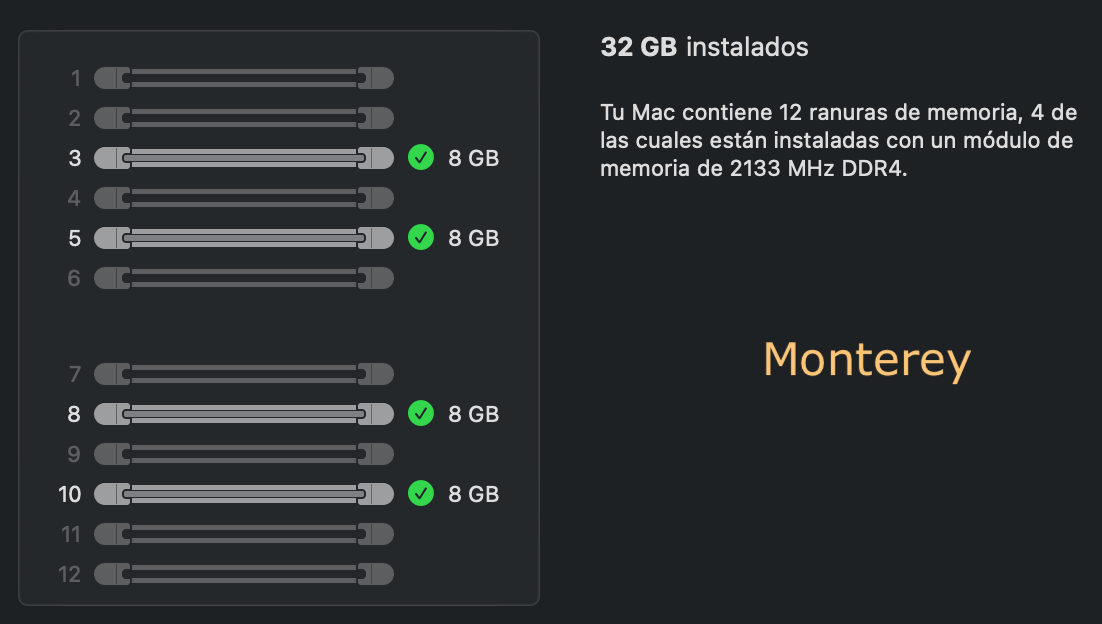
I have 4 DIMMs (8Gb each). The downloaded config.plist for 4 DIMMs works fine. In Monterey, everything is fine.
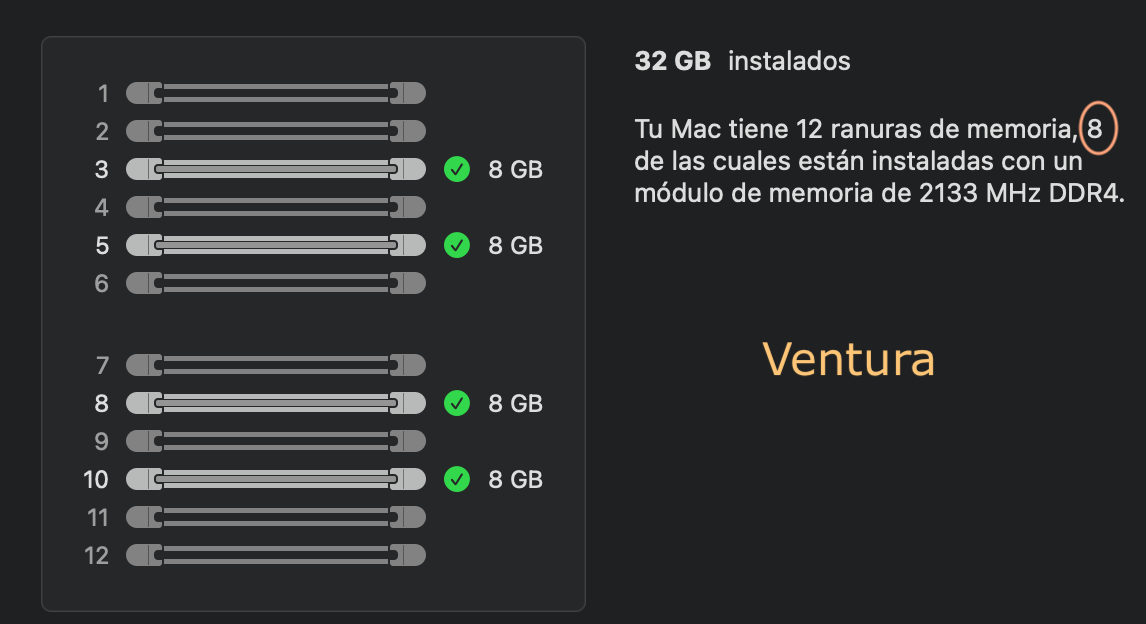
But on Ventura, I don't know if you have tried it already, the same setting shows the image of the memory slots well but the number of occupied slots is wrong. The text says that I have 8 slots occupied but in reality I only have 4. Otherwise, everything seems to be working fine.
Have you seen this in Ventura? Actually in macOS 13 there are important changes regarding AboutExtension.
Thanks for all the info posted. And djlild7hina, of course.

 
Last edited:
J'ai enfin compris comment utiliser correctement la section Mémoire dans OC. J'ai décidé de m'y atteler car j'utilise désormais un MacPro7,1 au lieu d'un iMacPro1,1, le premier étant apparemment plus adapté aux futures cartes graphiques AMD 6x00XT.

En suivant attentivement ce guide, vous n'aurez plus besoin du fichier kext « RestrictEvents.kext » et vous ne rencontrerez plus d'erreur de mémoire. Je n'ai testé cette méthode que sous Big Sur, mais elle devrait également fonctionner sous Catalina.

Voici le guide de mémorisation :

La numérotation des « BANQUES » d'OC a été modifiée pour mieux correspondre aux instructions de mise à niveau de la mémoire fournies par Apple. Ces numéros, dans leur ordre d'apparition, correspondent aux emplacements : 7, 8, 9, 10, 11, 12, 6, 5, 4, 3, 2 et 1. Ils correspondent aux numéros d'emplacement sur la carte mémoire. Dans la documentation Apple, les emplacements sont organisés en canaux DIMM, AF. Le canal DIMM A correspond aux banques/emplacements 7 et 8 ; le canal B, aux emplacements 9 et 10 ; le canal C, aux emplacements 11 et 12 ; le canal D, aux emplacements 5 et 6 ; le canal E, aux emplacements 3 et 4 ; et le canal F, aux emplacements 1 et 2 (comme indiqué ci-dessous).

View attachment 2995
View attachment 2996
View attachment 2997
[/BECQUET]

Voici ce qui s'affiche avec 8 barrettes DIMM installées sur ma carte mère TRX40, si la configuration est correcte. Bien que la plupart des cartes mères ne proposent que 8 emplacements mémoire (et certaines seulement 4), un Mac Pro 7,1 en possède 12. Nos cartes mères auront donc toujours au moins 4 emplacements libres. Si vous n'utilisez que 4 barrettes de mémoire, configurez la carte mère pour laisser vides les emplacements suivants : 1, 2, 3, 5, 8, 10, 11 et 12. Autrement dit, avec 4 barrettes DIMM, seuls les emplacements 4, 6, 7 et 9 seront occupés (merci à djlild7hina !).

Remarque : il ne s’agit pas de déplacer physiquement vos barrettes de RAM sur votre carte mère ; cette procédure vise à associer vos barrettes de RAM aux emplacements logiciels attendus par macOS. Veillez à conserver l’emplacement physique de vos barrettes de RAM indiqué dans le manuel de votre carte mère.


Le code dans OC est présenté dans l'extrait ci-dessous (j'utilise PlistEditPro ; le code complet est disponible en pièce jointe). Ajoutez-le en bloc dans la section « Mémoire » de la section PlatformInfo (n'oubliez pas d'activer « CustomMemory »). Les numéros de série sont arbitraires (indiquez les vôtres si vous êtes plus pointilleux). Les références des composants sont celles que j'ai utilisées, fabriquées par Corsair ; vous pouvez les modifier à votre guise. L'AssetTag est également arbitraire, mais n'est renseigné que si l'emplacement mémoire est occupé. Enfin, ajustez les valeurs de taille et de vitesse pour qu'elles correspondent à votre barrette DIMM.


[/BECQUET]

Si la commande SystemInformation est exécutée, le résultat suivant s'affiche :
View attachment 2998
[/BECQUET]

En pièce jointe, j'ai inclus les 8 barrettes DIMM ainsi qu'une configuration pour 4 barrettes (4 barrettes DIMM vérifiées et corrigées par djlild7hina sur un autre forum). Désactivez l'une ou l'autre en utilisant le symbole « # » ou activez-la en supprimant « # » et en modifiant l'en-tête de l'étiquette en « Mémoire ».
View attachment 2999

Le fichier joint a été mis à jour pour corriger également les paramètres des barrettes DIMM 2 et 4.
 
Hello,
and thanks for all this information.
I'm just having a small issue with the window size; I downloaded one of your templates from your GitHub.
Have you ever encountered this problem?
 

Attachments

  • Capture d’écran 2026-09-10 à 14.58.53.png
    Capture d’écran 2026-09-10 à 14.58.53.png
    71.6 KB · Views: 8
✖
  AdBlock Detected
Sure, ad-blocking software does a great job at blocking ads, but it also blocks some useful and important features of our website. For the best possible site experience please take a moment to disable your AdBlocker.