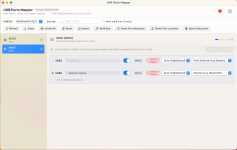
USB Ports Mapper — What It Does and How to Use It
We all know mapping the USB ports is a very time consuming and one of the most challenging part of building a hackintosh, I've decided to make it as simple as possible and running on macOS was the goal without having to rely on Windows.
I hope you enjoy using the USP Ports Mapper and find it helpful.
The app should run on macOS Catalina and newer (I didn't test it on Catalina I don't have it installed on my of my computers)
Introduction:
USB Ports Mapper is a native macOS app for building USB port maps for Hackintosh systems — the same job tools like USBToolBox, Hackintool, and USBMap do, but as a self-contained app that reads your USB controllers live from IOKit and lets you select, name, and type each port with immediate visual feedback.
It outputs everything you need to actually use the map: UTBMap.kext + USBToolBox.kext (the modern, SMBIOS-independent method), a native USBPorts.kext (the classic Apple-style, SMBIOS-locked method), and legacy SSDT-UIAC.aml/USBInjectAll.kext support, plus the supporting SSDT-USBX/SSDT-EC ACPI tables.
Header Row
- Auto-Discovery On/Off — the pill next to the app name. When on, the app re-scans IOKit automatically every few seconds so newly plugged-in devices show up without you doing anything. Click it to pause/resume.
Global Controls
- SMBIOS — the Mac model you're spoofing. Only used for the native USBPorts.kext output, since that method is tied to a specific SMBIOS model; the recommended UTBMap.kext method ignores it entirely.
- Exclude — a comma-separated list of port names (e.g. HS01, SS02) to leave out of the generated map entirely, without having to deselect them one by one.
- Allow more than 15 ports — macOS's stock USB driver can only address 15 ports per controller. This toggle just tells the app's own warnings that you've already enabled the XhciPortLimit quirk in your bootloader — it doesn't patch anything itself. A stepper appears to raise the ceiling the app warns against, up to 26.
Action Buttons
- Refresh — re-scans IOKit right now, on demand (independent of Auto-Discovery).
- Clean — hides ports that are both unselected and have never had a device attached, so a large empty port list gets easier to scan.
- Unhide All — undoes Clean; brings every hidden port back into view.
- Reset — clears your current selections/settings back to defaults (asks for confirmation first).
- Import — loads a previously exported usb.json or an existing kext's Info.plist so you can pick up earlier work instead of starting over.
- Build Kext — the main event. Generates a timestamped folder on your Desktop containing UTBMap.kext, the bundled USBToolBox.kext, a native USBPorts.kext, SSDT-UIAC.aml (legacy), SSDT-USBX.aml and SSDT-EC.aml (power/EC support tables), a usb.json snapshot of your current map, and an Instructions.md + README-Recommendations.txt walking you through installing whichever method you choose.
- Guess Port Addresses — a diagnostic-only tool, separate from your real map. It builds a small USBMapDummy.kext that sweeps a range of raw port addresses so you can find ports your board's ACPI data doesn't expose cleanly. Not something to leave installed — the bundled README explains how to use and then remove it.
- Detect Port Locations — reads your board's live ACPI tables and decodes each port's _PLD (Physical Location of Device) data, when present, to figure out which HS/SS port pairs share one physical connector and roughly where it is (front panel, rear I/O, internal). If nothing changes after running this, your board's firmware simply doesn't populate _PLD — common, and not a bug. Ports that turn out to have a real, individually-named ACPI device behind them also unlock a "Disable via SSDT" action.
- Export Debug Info — writes a full raw IOKit dump (every controller and port, whether or not it parsed as usable) to a JSON + text summary. This is the file to send along if something looks wrong and you want a second opinion — it shows the full device tree behind every port, not just what the normal list displays.
Per-Port Row Controls
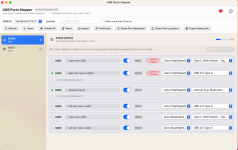
Each row in the port list has, left to right:- Activity dot — solid green while a device is currently attached; briefly pulses right after something gets plugged in.
- Port name — e.g. HS04, SS02 (selectable/copyable text).
- Comment field — free text for your own notes ("Rear IO USB Type C", "Front Panel", etc.) — purely for your own reference, also carried into the generated kext/SSDT as a #comment.
- On/Off toggle — whether this port is included in the generated map at all.
- Port N badge — the port's raw index, which is what actually gets encoded into the map (not its display position in the list).
- Location badge (
 ) — only appears when _PLD data was found for this port; shows which physical panel it's on and which other port it's paired with, if any.
 - Disable via SSDT — only appears on ports with a real, verified ACPI device object behind them. Builds a standalone SSDT that reports that specific device as not present under macOS, for permanently disabling one you never use. This option is to disable the built-in Bluetooth module in modern motherboards
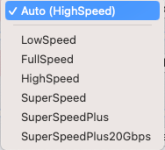
- Speed picker — override the auto-detected speed class, or leave it on Auto.
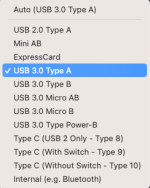
- Type picker — override the port's physical connector type (Type A, Type C with/without switch, Internal, etc.), or leave it on Auto to use whatever the app guessed from ACPI data or the attached device.
- Connected Devices — expandable row showing what's actually plugged into that port right now, including anything behind a hub.
Typical Workflow
- Hit Refresh (or just let Auto-Discovery run) and plug a device into each physical port you care about, one at a time, watching which row lights up.
- Toggle on the ports you want in your final map; use Exclude for anything you're leaving out entirely.
- Run Detect Port Locations to auto-fill panel/pairing info and internal classification where your board's ACPI data supports it.
- Adjust any port's Type or Speed manually where needed (e.g. correcting a Type-C port between "with switch" and "without switch" based on how it actually behaves).
- Hit Build Kext, then follow the generated Instructions.md — pick one method (UTBMap.kext + USBToolBox.kext is recommended) and don't mix it with the legacy SSDT-UIAC/USBInjectAll method.
Credits
Builds on amazing work from Dhinak G & the USBToolBox project, RehabMan (USBInjectAll/SSDT-UIAC), Acidanthera (OpenCore/MaciASL), Dortania (mapping guides), and CorpNewt (USBMap and related tooling).Caution:
Please copy your EFI folder to a USB disk first and then test the generated files, make sure everything is working correctly before replacing your existing kext files I know hard you worked to map your USB ports.
I'm still testing the app so there might be some issues and bugs.
If you've found this tool helpful and if it helped you to save time and unnecessary headaches please support the development and keeping it up to date.
Please give me your feedback on the generated files and how the app performed on your end.
USB Ports Mapper
If the link above fails you can download it from Mega:

6.04 MB file on MEGA
Last edited: