Lenovo Legion 5 Pro16ACH6H AMD Hackintosh — Ventura boots through verbose, then black screen

Minime

New member
AMD OS X Member
Aug 26, 2026
5
0
1
CPU:
AMD Ryzen 7 5800h
Hi everyone,

I'm trying to install macOS Ventura on a Lenovo Legion 5 Pro, and I'm stuck at the same point during boot. I've been troubleshooting this for a while and would really appreciate some guidance from someone experienced with AMD laptop Hackintosh setups.

Hardware​

Laptop: Lenovo Legion 5 Pro

  • CPU: AMD Ryzen 7 5800H
  • GPU: Nvidia 3070 but disabled
  • iGPU: AMD Radeon Graphics (Vega)
  • RAM: 32 GB
  • Internal SSD: Samsung MZVLB1T0HBLR-000L2 1 TB NVMe
  • Wi-Fi/Bluetooth: MediaTek Wifi 6 MT7921(disabled)
  • Ethernet: Realtek
  • OS: Windows 11
  • Target macOS: macOS Ventura
I have a working macOS Ventura USB installer.

OpenCore starts correctly and I can select:

  • Windows
  • Install macOS Ventura
When I select Install macOS Ventura, macOS starts verbose booting.

I get a large amount of verbose output and it gets quite far into the boot process.

However, eventually the display becomes completely black/faint and the system appears to hang.

The LCD itself is still powered, so it doesn't look like the laptop simply turned the display off.

I've also tried:

  • Waiting 15+ minutes
  • Cmd + Ctrl + F1/F2
  • External monitor
  • Rebooting and trying again
  • Multiple boot attempts
None of these recover the display.

The last visible messages vary slightly between boots.

SMBIOS: MacBookPro16,3

BIOS :

SecureBoot: disable

Deviceguard: disable

Memorybuffer: 4G

If you have any question regarding anything please feel free to ask also here's my EFI:

https://drive.google.com/file/d/1-2aCSqeIk9_lb60_3AsgA3Lmzm0sdXRU/view?usp=sharing
 

Attachments

OK, the first thing I would point out is that your Samsung NVMe drive is not the best choice. Read the blurb about Samsung PM981 drives on the Anti-Hackintosh Buyers Guide linked below.


Common issues with AMD laptops, using VEGA graphics is that NootedRed.kext can cause a Black screen issue when installing macOS. You would be advised in this case to disable NootedRed.kext in your config.plist until you reach the macOS Desktop, i.e. can log in to your new user account.

Another element is that NootedRed.kext doesn't play well with any DeviceProperties, it is usually best to avoid using any DeviceProperties, add the elements you need via a custom SSDT or Boot Argument when possible (i.e. for audio use alcid=21).

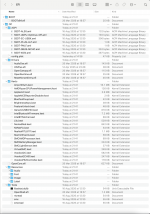
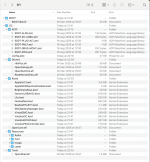
Looking through your EFI folder I would comment as follows, see screenshot below.

Screenshot 2026-08-26 at 21.45.55.png Finder view of EFI folder contents.

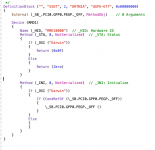
The IOReg path for the Nvidia dGPU may not be a match for how the dGPU is addressed in your AMD system. The SSDT-dGPU-Optimus-Off.aml table seems to be set for what I would expect to find in an Intel laptop. You may have to use the -wegnoegpu boot argument to disable the Nvidia dGPU in macOS.

Screenshot 2026-08-26 at 21.53.02.png Contents of SSDT for disabling the Nvidia dGPU.

This appears to be a Dortania SSDT that hasn't been adapted to suite your AMD laptop settings. So it is probably not doing anything helpful when you boot in to the macOS installer. This may be another reason why you are seeing the black screen after the Verbose text. As the laptop would look to use the dGPU when possible, i.e. when power is supplied via the power brick.

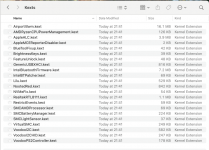
Your /EFI/OC/Kexts folder contains too many unnecessary kexts, for the first installation of macOS on an AMD laptop. You would be better off keeping the number of kexts to a minimum of those actually required for the components in the system, which you need to boot and install macOS.

Screenshot 2026-08-26 at 22.00.48.png
  1. As your builtin WiFi & Bluetooth (MediaTek) are not compatible with macOS you shouldn't have any WiFi or Bluetooth related kexts in your setup.
  2. Any Sensor kexts are likewise unnecessary, except for the Battery Manager.
  3. Others such as FeatureUnlock, NVMeFix and RestrictEvents can be omitted/disabled until the system is booting to the OS desktop. As none of these are essential for a first installation.
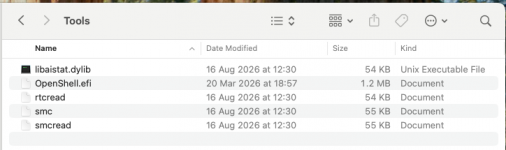
Your /EFI/OC/Tools folder contains a lot of unnecessary files.

Screenshot 2026-08-26 at 22.01.07.png

All that should be present in this folder is the OpenShell.efi file, all the others are unnecessary and simply taking up space, they have absolutely no bearing on your hack.

Were I creating your OC EFI it would look like this.

Screenshot 2026-08-26 at 22.19.33.png Revised EFI folder contents, with appropriate edits made to the config.plist to match.

The AMD Kernel patches you are using are at least a version that would support Ventura. However if you planned to update the system to Sonoma or newer you would need to replace/update the AMD Patches to do so.

The Bluetooth entries in the NVRAM > Add section of your config.plist are again unnecessary. Especially as the corresponding parts are missing from the Delete section of the NVRAM entries.

I have attached a revised EFI folder for you to try, based on the comments above. All you should need to do is add your Serial Number, MLB, ROM and SystemUUID details to the config.plist.
 

Attachments

Edhawk, this is my first Hackintosh, so I’m still learning and honestly don’t have much experience with troubleshooting these kinds of issues. I’m not sure what you changed, but whatever you did helped me get past the black screen issue, and I can now successfully boot into Recovery. Thank you so much for that — I really appreciate your help!

However, I’ve run into a new problem now. Basically, once I’m in Recovery, the entire system randomly freezes/hangs. It doesn’t seem to matter whether I’m actively doing something or just leaving the system idle — after some time (between 10-15 min), everything completely freezes and becomes unresponsive. At that point, I have no choice but to hard restart the laptop.

I’m not sure what exactly is causing the freeze, or whether it’s related to the EFI configuration, ACPI, kexts, or something else. Since I’m still new to Hackintosh, I don’t really know where to start diagnosing this.

Also, I made a few changes to the EFI you originally provided to me. I’ll upload/paste my current EFI here so you can take a look at what I changed and hopefully identify what might be causing the issue.

Again, thank you for helping me get past the black screen and into Recovery — that was a huge step forward for me!

Update : I discovered something in Recovery Mode. When the bootable USB drive is connected, the system freezes after a while. However, when I boot into Recovery Mode and remove the bootable USB drive connected, it does not freeze.
 

Attachments

Last edited:
Instead of removing the USB and keeping it unplugged, try inserting it in another USB port, as the first USB port may have issues working in the macOS installer. This isn’t uncommon for AMD Hacks that lack a custom USB configuration/kext.

I will have a look at your revised EFI folder when I am next at my Desk. I am currently using an iPad so opening and interrogating an EFI folder can be cumbersome and frustrating.
 
Tested all ports, but the issue still persists. also no worries take your time sir
Update: It’s really weird now. When I kept the USB plugged in, it didn’t freeze, so I went ahead and started installing Ventura. I thought it might finally succeed, but unfortunately, no. Again, when it showed 12 minutes remaining (Never went ahead of 12 min), it froze up.
 
Last edited:
I can't see anything in your EFI that needs attention. None of the changes you made and listed in the Readme doc would raise any concerns.

The installation freezing at 12 minutes is usually a sign of issues with the installation package. Which I assume as you are using the 'Recovery' method has been downloaded as part of the installation process. This isn't an uncommon issue, it can also happen when using an 'OffLine' installer, i.e full macOS Ventura installer downloaded and restored to a 16G USB.

I assume the Ethernet connection worked with the RealtekRTL8111.kext, did you notice any drops or freezes during the macOS download process?

How long did you leave the system with the 12 minutes remaining progress bar visible on the display, 30+minutes or less?
 
I can't see anything in your EFI that needs attention. None of the changes you made and listed in the Readme doc would raise any concerns.

The installation freezing at 12 minutes is usually a sign of issues with the installation package. Which I assume as you are using the 'Recovery' method has been downloaded as part of the installation process. This isn't an uncommon issue, it can also happen when using an 'OffLine' installer, i.e full macOS Ventura installer downloaded and restored to a 16G USB.

I assume the Ethernet connection worked with the RealtekRTL8111.kext, did you notice any drops or freezes during the macOS download process?

How long did you leave the system with the 12 minutes remaining progress bar visible on the display, 30+minutes or less?
For more than 30 min also when it hits 12min the system freezes up cant even move mouse, caps lock light becomes unresponsive and had to restart device from physical button. What do you think I should do reinstall Ventura or other version of OS ?
 
If you or a friend have access to a real Mac or another Hack, I would create an Offline installer, rather than rely on the Recovery download option. If that isn't an option then try creating a Sonoma installer using the Recovery process.

To be honest, starting with Ventura is fine, there is no need to change the macOS version on initial installation if it works. You will be offered plenty of chances to upgrade to Sonoma or newer once you have macOS up and running.
 
I am using a offline installer for current Ventura
 
Then you need to recreate the USB, as your current one isn't working correctly, as shown by the 12 Minute freeze.

By this I mean the following:
  1. Erase your current USB installer using Disk Utility.
    1. Formatting the drive as HFS+ GPT, and name the USB as 'Untitled'.
  2. Delete the Ventura Installation app from the Applications folder, don't use the same installation application as it will just repeat the same problem where the installation freezes with 12 minute remaining.
  3. Download another/new copy of Ventura or Sonoma.
  4. Restore the new macOS installer application to the erased USB.
  5. I use the CreateInstallMedia process in Terminal when creating a macOS Usb installer.
    1. For Ventura I use the following command.
      1. sudo /Applications/Install\ macOS\ Ventura.app/Contents/Resources/createinstallmedia --volume /Volumes/Untitled
    2. For Sonoma I use this command.
      1. sudo /Applications/Install\ macOS\ Sonoma.app/Contents/Resources/createinstallmedia --volume /Volumes/Untitled
  6. Once the macOS Restore process has completed copy the working EFI folder to the EFI partition on the USB.
 
  AdBlock Detected
Sure, ad-blocking software does a great job at blocking ads, but it also blocks some useful and important features of our website. For the best possible site experience please take a moment to disable your AdBlocker.