Hey,
I have been playing around with a Mini HP EliteDesk 705 G5 system for the last couple of months and have finally been able to install Sequoia 15.7.3 and Tahoe 26.2 on the system.
I am not one to provide in-depth guides for Hack's I get working, I leave that to those better suited to the task. I am more a here's what works for me, see if it does the same for you.
The specs of my system are as follows:
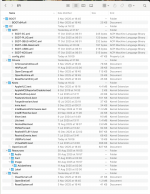 EFI contents from working release version of OpenCore 1.0.6. Nothing unusual for an AMD system.
Here are a couple of screenshots from Sequoia using Hackintool, showing the Peripheral and USB tabs.
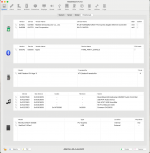 Hackintool > System > Peripherals tab showing main components in the system.
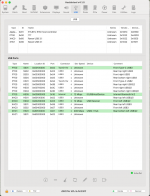 Hackintool > USB tab, showing the USB ports configured in this system.
The USBPorts.kext in the EFI works for both Sequoia and Tahoe.
When installing Sequoia and Tahoe, I did not have the Intel WiFi/BT kexts as part of the OpenCore setup. These were only added once I had the two OS's up and running on the system.
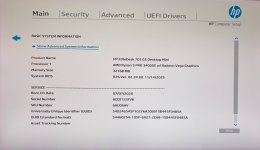
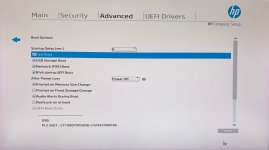
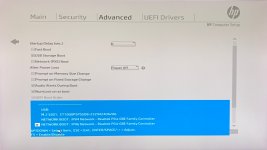
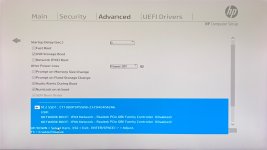
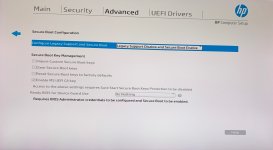
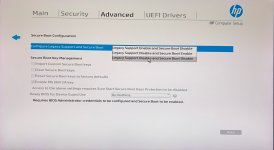
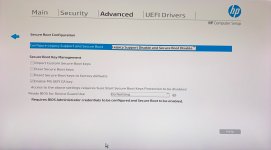
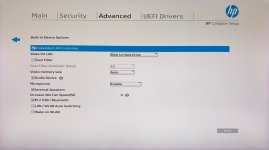
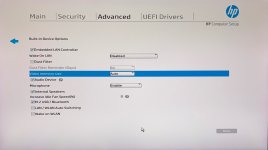
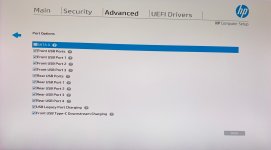
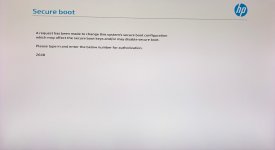
The HP Bios was as expected a PoS! It took a while for me to find and select the necessary options required so the macOS installer would boot. Secure Boot option is a bit temperamental in that it kept switching back on, after I had disabled it and saved the Bios setup. It also re-enabled itself after a NVRAM reset, so watch out for this. The other bios settings were pretty straightforward and as listed in the Dortania AMD Ryzen guide.
The Bios Setup key is 'F10', with the Bios Boot Menu key being 'F9'.
Anyway, I have attached the working OpenCore 1.0.6 EFI for those that have the same HP AMD system and want to run a recent version of macOS on it.
I have been playing around with a Mini HP EliteDesk 705 G5 system for the last couple of months and have finally been able to install Sequoia 15.7.3 and Tahoe 26.2 on the system.
I am not one to provide in-depth guides for Hack's I get working, I leave that to those better suited to the task. I am more a here's what works for me, see if it does the same for you.
The specs of my system are as follows:
- HP EliteDesk 705 G5 Mini
- Bios: R26 v.02.23.00 07/07/2025 (Secure Boot is temperamental, keeps switching itself back on)
- CPU: AMD Ryzen 5 PRO 3400GE 4-Cores/8-Threads
- APU: AMD Radeon RX Vega 11 - Picasso
- VRAM: 2GB
- Metal Support: Metal 3
- Chipset: AMD 400 Series
- SMBIOS: iMac20,1
- OS: Sequoia, Tahoe & Windows 11 Pro
- RAM: 16GB DDR4 SODIMMs (2 x 8GB @ 2667 MHz)
- Drive 1: WD SN570 500GB NVMe (in two partitions for macOS)
- Drive 2: PC601 SKhynix NVMe 256GB (Win 11)
- LAN: Realtek RTL8111
- WiFi/BT: Intel AX200NGW
- Audio: Conexant CX20632 - layout-id=20
- Displays: Dual Dell Ultrasharp U2515H 2560x1440 DisplayPort to Mini DisplayPort cables
EFI contents from working release version of OpenCore 1.0.6. Nothing unusual for an AMD system.Here are a couple of screenshots from Sequoia using Hackintool, showing the Peripheral and USB tabs.
Hackintool > System > Peripherals tab showing main components in the system. Hackintool > USB tab, showing the USB ports configured in this system.The USBPorts.kext in the EFI works for both Sequoia and Tahoe.
When installing Sequoia and Tahoe, I did not have the Intel WiFi/BT kexts as part of the OpenCore setup. These were only added once I had the two OS's up and running on the system.
The HP Bios was as expected a PoS! It took a while for me to find and select the necessary options required so the macOS installer would boot. Secure Boot option is a bit temperamental in that it kept switching back on, after I had disabled it and saved the Bios setup. It also re-enabled itself after a NVRAM reset, so watch out for this. The other bios settings were pretty straightforward and as listed in the Dortania AMD Ryzen guide.
The Bios Setup key is 'F10', with the Bios Boot Menu key being 'F9'.
Anyway, I have attached the working OpenCore 1.0.6 EFI for those that have the same HP AMD system and want to run a recent version of macOS on it.