On the beginning scree the main error relates to SMCRadeonSensors.kext. I would remove this from the OC setup, as it is definitely not essential for your system to boot.
I would remove any Sensor related kexts from the OC setup, as again none of these are essential for the system to boot Tahoe. They are more likely to cause unnecessary issues than they are to help.
The final screen where the verbose text is garbled and the prohibited sign is shown, usually means the USB port that contains the macOS Installation has been dropped. Initially I would recommend that you try a different USB port, preferably a USB2.0 port.
The more permanent fix is to update your USBPorts.kext, using Hackintool version 4.1.4 or newer, so it is compatible with Tahoe. As it stands your USBPorts.kext isn't compatible with Tahoe, as it lacks the entries with the new port numbering and naming convention Apple introduced with Tahoe.
I would recommend that you switch to using Corpnewt's USBMap script in place of Hackintool, as the later isn't AMD friendly, when configuring your USB ports.
Python script for mapping USB ports in macOS and creating a custom injector kext. - corpnewt/USBMap

github.com
I would also recommend you use Corpnewt's SSDTime script to generate custom SSDT's for your system. Using the generic SSDT's or ones you have lifted from someone else isn't always the best course.
SSDT/DSDT hotpatch attempts. Contribute to corpnewt/SSDTTime development by creating an account on GitHub.
github.com
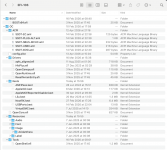
Below is a screenshot showing the contents of your EFI folder as posted above.
View attachment 19397
I would draw you attention to the following:
- Apple Folder, this is not required and is only likely to cause issues, so I would remove it.
- You have an SSDT-EC-USBX-DESKTOP.aml, SSDT-EC.aml and an SSDT-USBX.aml, you should not have the first SSDT alongside the other two. All three should never be present and enabled in your OC setup.
- The SSDT-EC-USBX_DESKTOP.aml table is a generic SSDT that tries to cover many Intel and AMD systems. Using this is fine when you are first installing macOS, but it should not still be in use when you have a well established Hack. I would remove this SSDT and leave the other two in place.
- This is where Corpnewt's SSDTTime comes in to its own. It uses your system ACPI tables to generate custom SSDT's for your system. These Custom SSDT's are much better than the generic SSDT's, in that they load faster and only contain the information required for your system.
- The drivers in your Drivers folder are from a couple of different dates/times, which to my mind means they are not all from the same OC release (4th March & 20th March). These plus the BOOTx64.efi, OpenCore.efi, config.plist and any Tools retained in the setup should all be from the same release/version.
- The exceptions to this are HfsPlus.efi and apfs_aligned.efi, which aren't released with OpenCore.
- Your Kexts folder contains too many kexts, which are likely to cause unnecessary issues when installing macOS Tahoe. The non-essential kexts should be removed temporarily, until Tahoe is installed and you are on the new Desktop.
- neither AppleALC.kext nor WhateverGreen.kext work in Tahoe.
- Apple have removed AppleHDA.kext from Tahoe, which AppleALC.kext relies on to work. So AppleHDA.kext needs to be added back to Tahoe, once you have it installed. A process has been created that enables this to be undertaken so your builtin Realtek audio will work. Your motherboard manual and spec page don't confirm which Audio Codec is used. I assume you know which codec is used and if it requires the fix or if like my Asus B650E board uses a USB audio, in which case you won't need to do anything other than include the audio port in your new USBMap.kext.
- You need to be using a forked version 1.7.1d7 of WhateverGreen.kext when running macOS Tahoe. It contains some fixes for the new OS, which the Acidanthera main kext lacks.
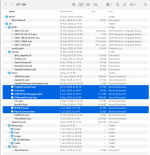
If I were creating your Tahoe EFI, it would look more like the image below.
View attachment 19398 Minimal Kexts folder, with BOOTx64, Drivers, Tools and OpenCore.efi all from the same release.
Only when I had completed the Tahoe installation would I add back the non-essential Kexts, as shown below.
View attachment 19399
Hope this helps.







 Thanks for all the info!