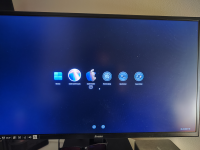
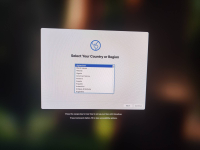
I managed to bypass the previous issue by disabling debugging and the -v option in boot-args.
Now I'm facing two new problems:
- The system freezes at random moments after booting into the installed system.
- I have no internet access via the Ethernet connection.
View attachment 18474
@rrysio6, in your config.plist you need to enable DummyPowerManagement under Kernel/ Emulation, otherwise the system will always freeze.
To enable Ethernet you need to load the correct kext. You have LucyRTL8125Ethernet.kext in your EFI, its disabled, but as you have an intel controller like Fabiosun you'll need to load the AppleIGC.kext. Its in his EFI
Otherwise how did you come up with your USB Port mapping? To be kind its needs a complete reworking.
These are the ports Asus included with your board:
USB
Rear USB (Total 12 ports)
2 x USB4<sup>®</sup> (40Gbps) ports(2 x USB Type-C<sup>®</sup> with DP Alt mode)*
6 x USB 10Gbps ports (5 x Type-A + 1 x USB Type-C<sup>®</sup> with up to 30W PD Fast-charge)**
4 x USB 5Gbps ports (4 x Type-A)
Front USB (Total 9 ports)
1 x USB 20Gbps connector (supports USB Type-C<sup>®</sup>)
2 x USB 5Gbps headers support 4 additional USB 5Gbps ports
2 x USB 2.0 headers support 4 additional USB 2.0 ports
* USB Type-C<sup>®</sup> power delivery output: max. 5V/3A
** USB Type-C<sup>®</sup> power delivery output: 5V/9V max. 3A, 12V max 2.5A, 15V max. 2.0A
Your USBMap.kexts lists two controllers. (it likely has three or four), the first of which has 8 or so internal ports (type 255) and a couple of USBc (9), The second controller has one USB3 (3) and that is just not even close.
Here are some guidlines on how to map your ports, go back to CorpNewts USB Map Master and take the time to plug in and label each port with a description of where and what type it is. Then make sure the map correctly identifies each port before building the kext. As an alternative you can also use USBToolBox since you are using Sequoia but again take the time to map the ports. Its one of the most important things you can do when building a hackintosh.
How to set USB Port Status by type (stolen from EdHawk)
- USB2 (0) - Physical USB2 ports on rear I/O plate, these ports always have a Black coloured tang.
- USB3 (3) - Physical USB3 ports on rear I/O plate, these ports can have a Red, Blue, Cyan or Yellow coloured tang.
- Virtual USB2 ports - served from physical USB3 ports) should be set with the same connector type as the physical port
- USB3 (3) - Motherboard Header, usually serving the case front USB3 ports.
- Virtual USB2 ports - served from physical USB3 ports) should be set the same as the physical port
- Internal (255) - Motherboard USB2 header, this will be any device served from a header port, such as Bluetooth module, case front USB2 ports, case front card reader etc.
- Internal connector type should also be used for any Bluetooth USB connection from a built-in M.2 connector (on the Rear I/O plate).
- Type-c+sw (9) - Type-C connector on Rear I/O plate, will only show two ports being available,
- when the Type-C device is inserted, removed, flipped 180° and reinserted, 1 x Physical Type-C and 1 x virtual USB2 port.
- Type-c (10) - Type-C (E) motherboard header, will show four ports being available from a single Type-C connector,
- when the Type-C device is inserted, removed, flipped 180° and reinserted, 2 x Type-C and 2 x USB2.

 Link to the post
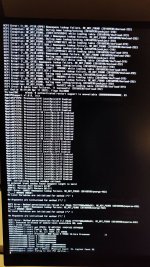
 I updated the BIOS to the latest version