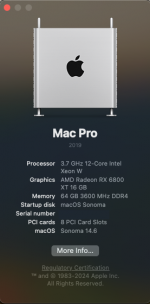
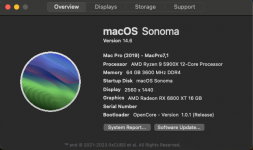
For a long time now my CPU name has shown correctly in About This Mac but the last few weeks it has been showing up a 3.7GHz 12 core intel xeon W.
I know it only cosmetic but it is annoying to see.
It is happening in Sonoma and Sequoia.
About This Hack shows it correctly.
RestrictEvents V1.1.4
NVRAM ADD > 7C436110-AB2A-4BBB-A880-FE41995C9F82 > -lilubetaall revpatch=sbvmm
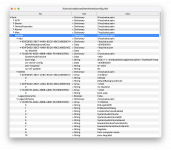
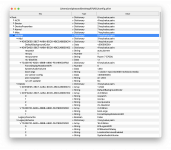
On the left is your config, mine is on the right. check the differences between our NVRAM sections. I set my mine up according to @Edhawk suggestions, and this would display the correct CPU name in the about this Hack/Mac in Sonoma. But as you point out, the CPU name hasn't sowing correctly in 'About This Mac' since Sequoia. See if adding the NVRAM entries to your config and see if that helps. Only 21 patches?, Shaneees latest patches for Sequoia contain 25!.
On the left is your config, mine is on the right. check the differences between our NVRAM sections. I set my mine up according to @Edhawk suggestions, and this would display the correct CPU name in the about this Hack/Mac in Sonoma. But as you point out, the CPU name hasn't sowing correctly in 'About This Mac' since Sequoia. See if adding the NVRAM entries to your config and see if that helps. Only 21 patches?, Shaneees latest patches for Sequoia contain 25!.
I have not needed to add anything previously. Wondering what has changed. I know it’s purely cosmetic. I thought I had the latest patches, unless they have been updated recently? I booted into Sequioa earlier tonight and it’s working fine besides the about this Mac name.
The CPU & GPU names being wrong in About this Mac is a cosmetic issue, which as you say has no bearing on how the system will function. For some it means more to have the correct CPU/GPU name displayed than it does for others.
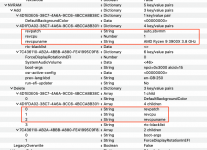
It is a simple cosmetic issue to fix using RestrictEvents.kext and some NVRAM > Add & > Delete entries as shown in the screenshot below.
NVRAM section from OC config.plist, with the ADD and DELETE entries highlighted.
Obviously you would need to edit the CPU name to match your system CPU.
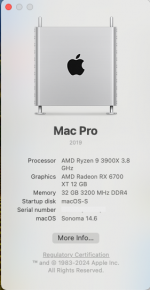
Save the changes, reboot the system, use ResetNvram from the OC boot screen and then after the auto reboot, boot in to macOS to see the changes in About this Mac.
CPU name change in About this Mac.
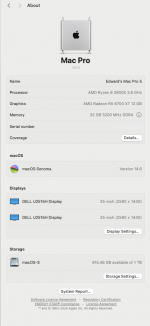
These config, plist entries also set the CPU name in the System Settings > General > About tab.
Example of CPU name change in System Settings > General > About tab.
This site uses cookies to help personalise content, tailor your experience and to keep you logged in if you register.
By continuing to use this site, you are consenting to our use of cookies.
Sure, ad-blocking software does a great job at blocking ads, but it also blocks some useful and important features of our website. For the best possible site experience please take a moment to disable your AdBlocker.